Operating environment
System to install: Debian 12, Ubuntu 24, or CentOS 8.5.2111 (versions below 7 are not recommended).
BT Panel Version: 11.2.0

Installation steps
Install .NET Manager
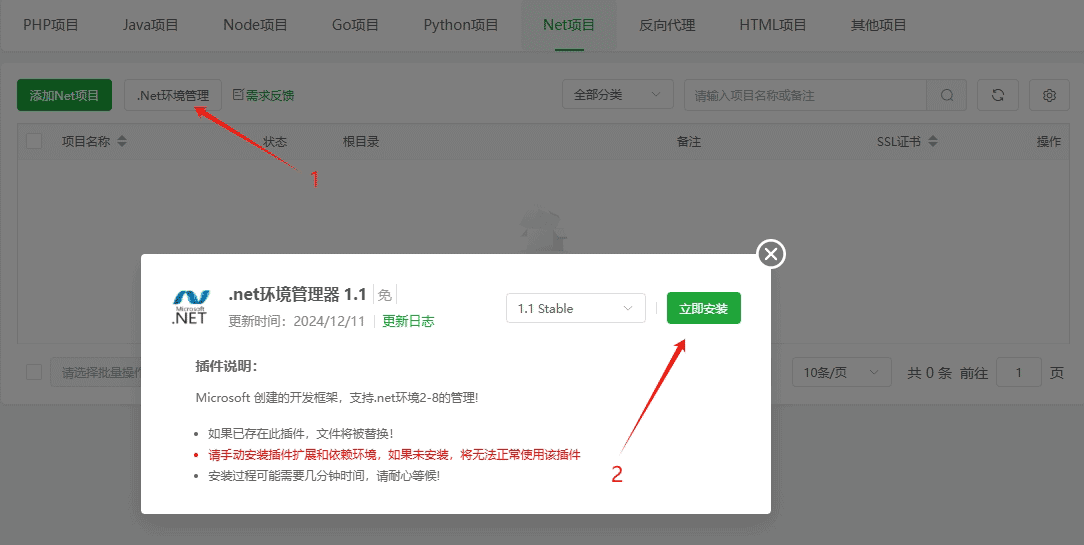
website>.NET project>.NET Environment ManagementFirst-time users should install the software..NET Environment Manager
Install .NET runtime libraries
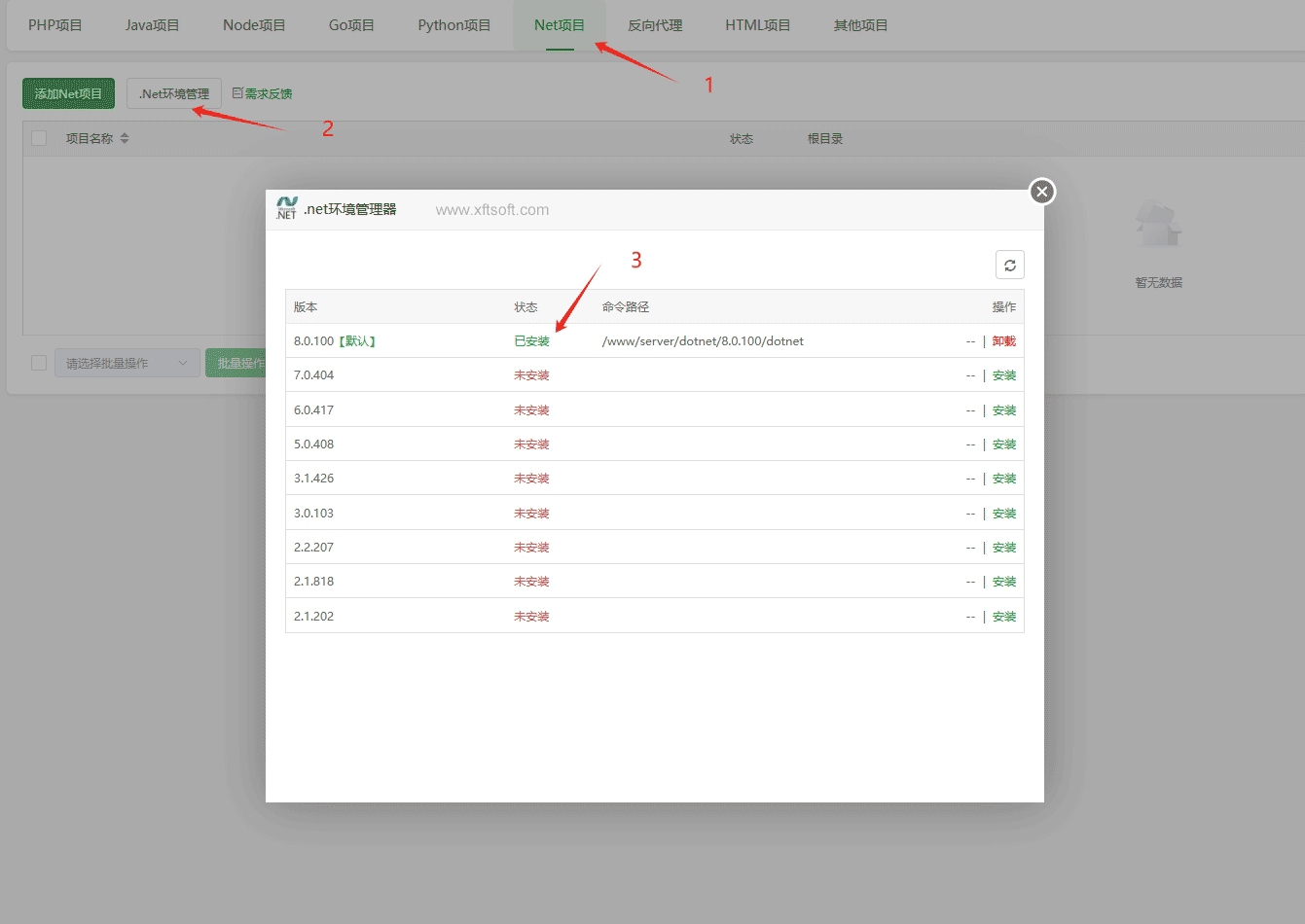
After installing .NET Environment Manager, install runtime library version 8.0.100, as shown in the image below.
Upload File
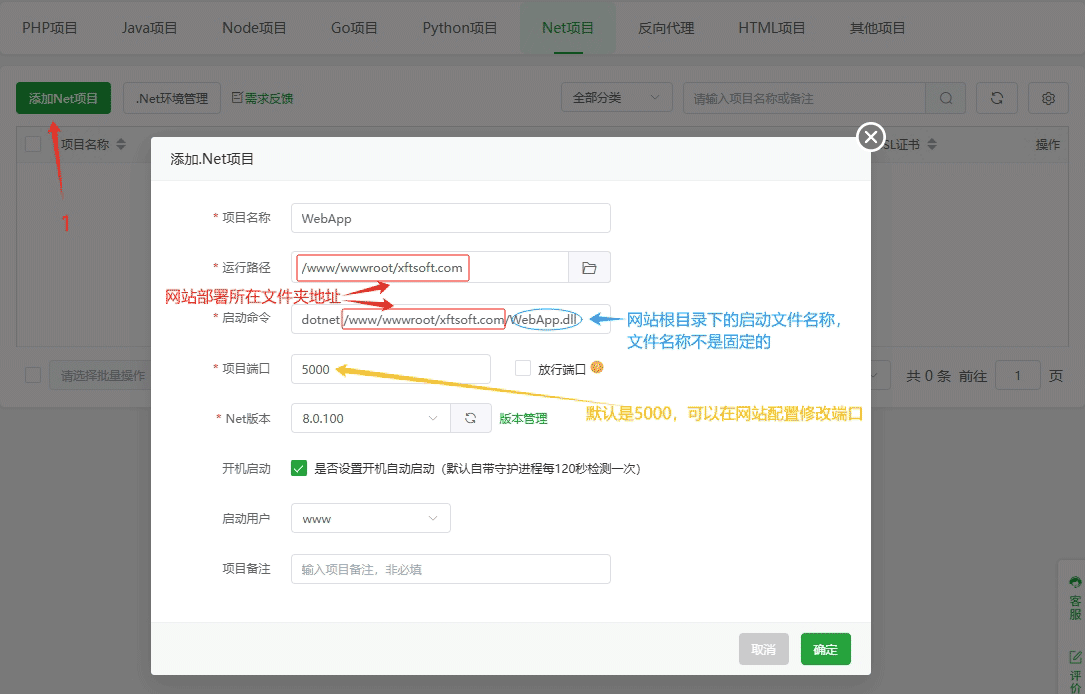
Add Project
Project Name: Custom
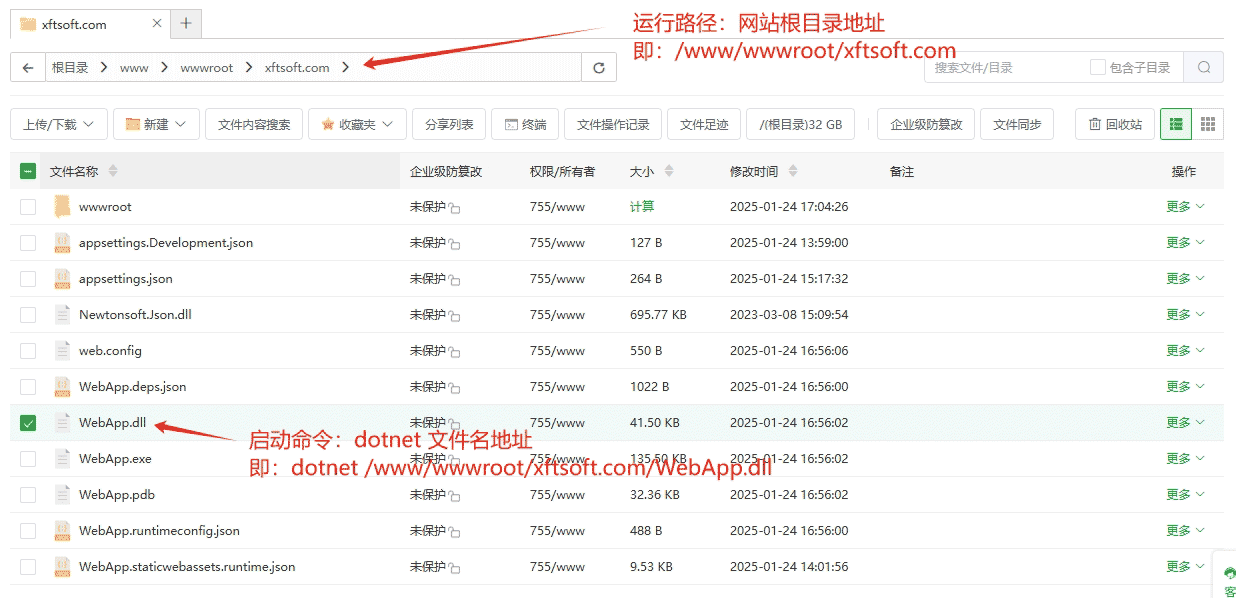
Running path: The folder address where the website is located (/www/wwwroot/xftsoft.com)
Startup command:dotnet /www/wwwroot/xftsoft.com/WebApp.dll(Where WebApp.dll is the name of the project's startup program)
Project port: The default is 5000. If you want to change the port to 5001, you need to add the parameter to the startup command line.--urls "http://0.0.0.0:5001"
.NET version: 8.0.100
Startup on boot: Check the box
User who started the program: www
Note: The running path and startup command are case-sensitive.
Domain Management
Bind your domain
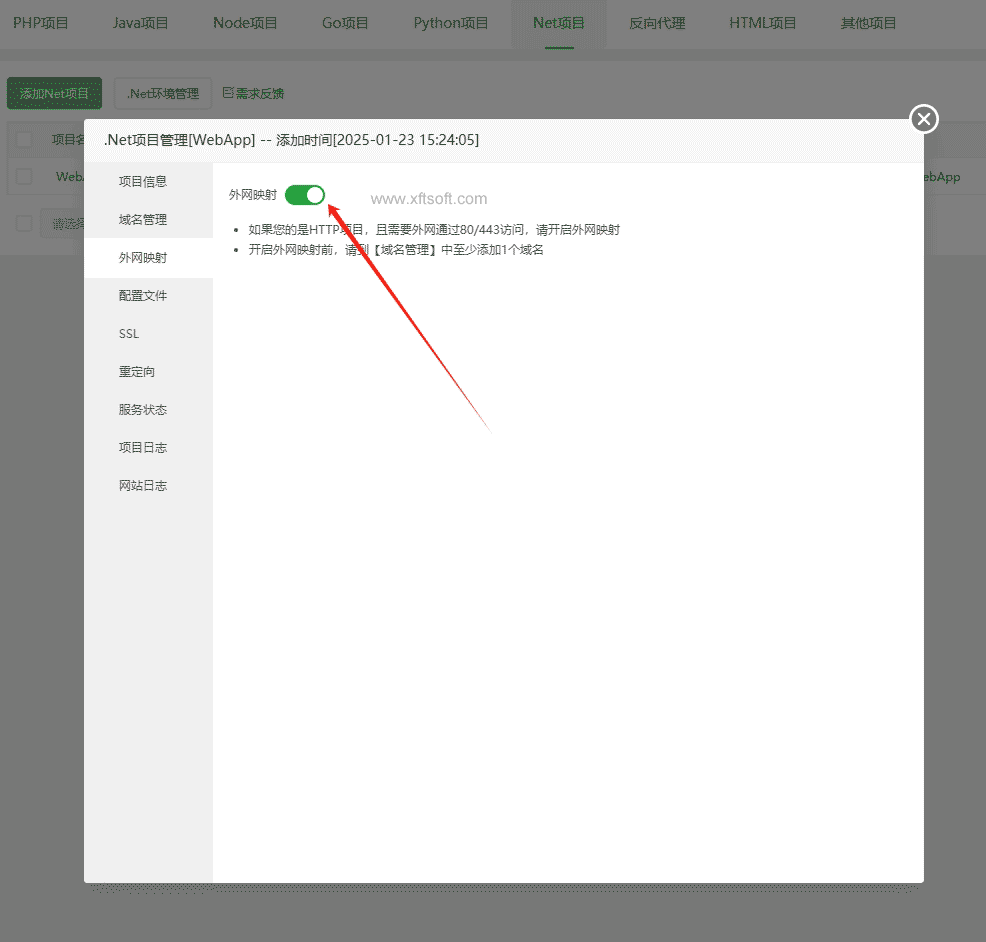
External network mapping
This option must be checked to access the site using a domain name. If you are prompted that you cannot check this option, please install it first.
Nginx