Install a self-signed root certificate and test the HTTPS service locally.
Table of Contents
Before installation
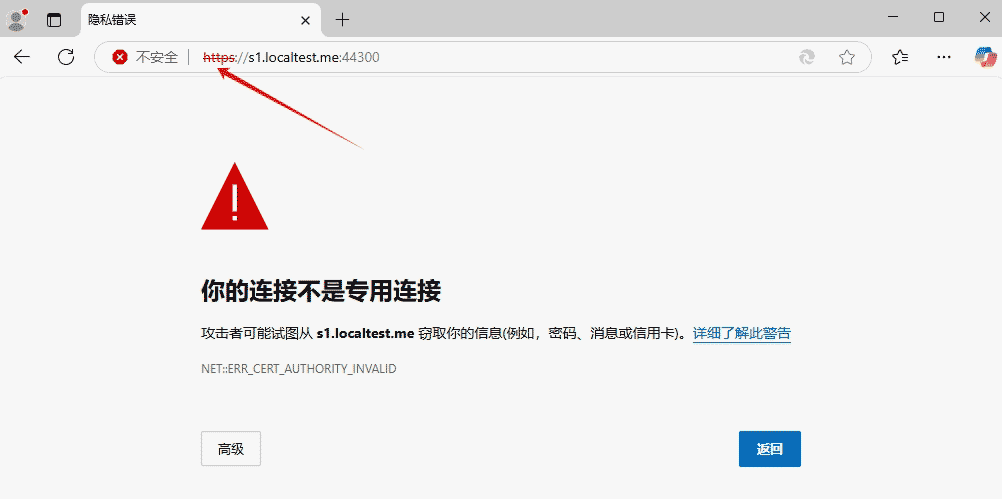
- Without an HTTPS root certificate installed, the browser will display a message saying "Your connection is not a private connection," and the address bar will show "Insecure."
- You need to click on the page
advanced>Continuing to access s1.localtest.me is insecure.You need to wait until the website opens, but it will still display the "insecure" message.
After installation
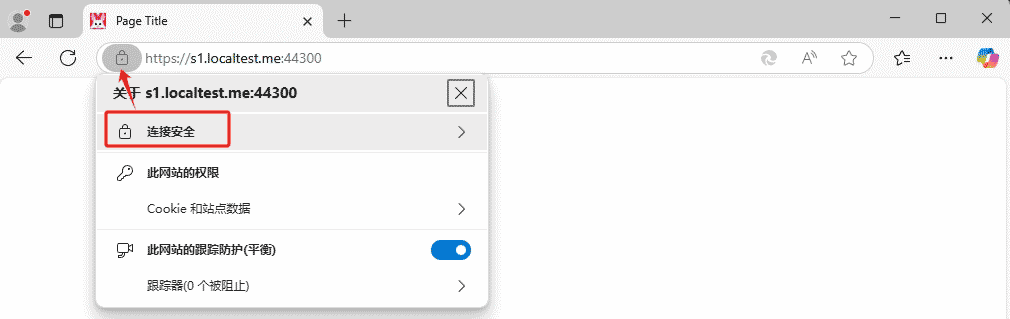
- The browser address bar displays "Connection Secure".
How to install the root certificate
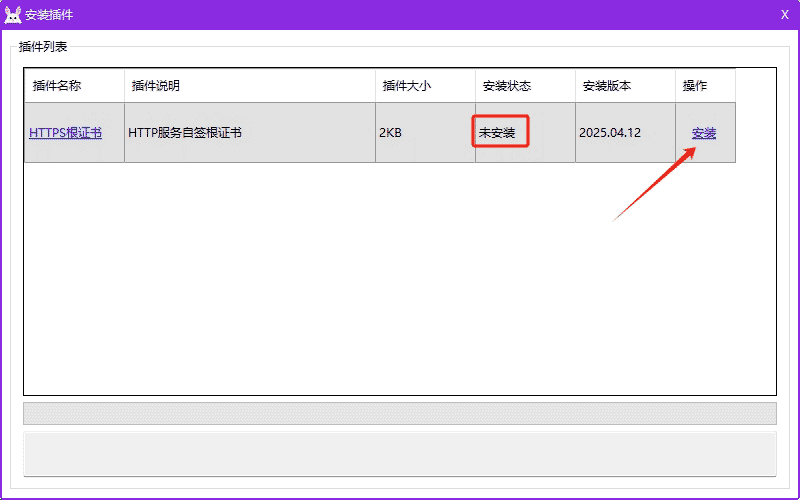
- Click on the menu bar of the Little Flying Rabbit software.
help>Install plugins,chooseHTTPS Root CertificateClick to install. After installation... Restart your browser It will only take effect then.
Running HTTPS service
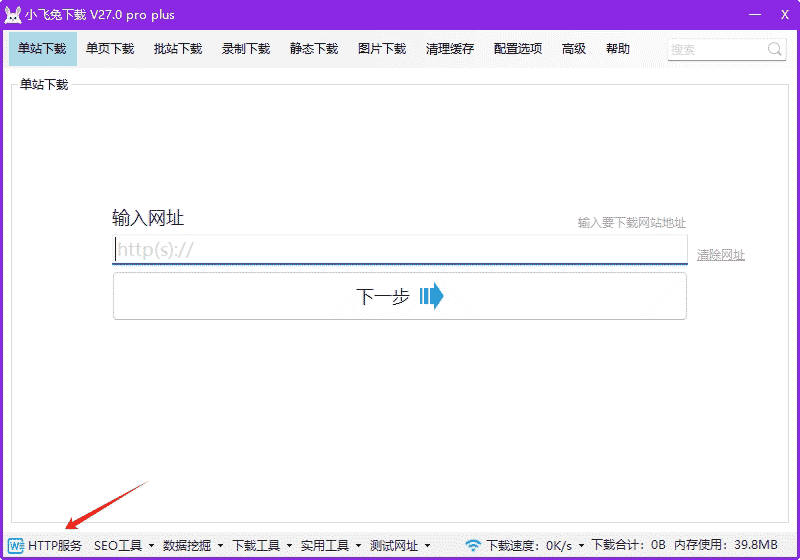
- Click the bottom left corner of the Little Flying Rabbit.
HTTP service
- enter Website Directory For the address, select HTTPS. s.localtest.me Options
- Click
Create an HTTP service
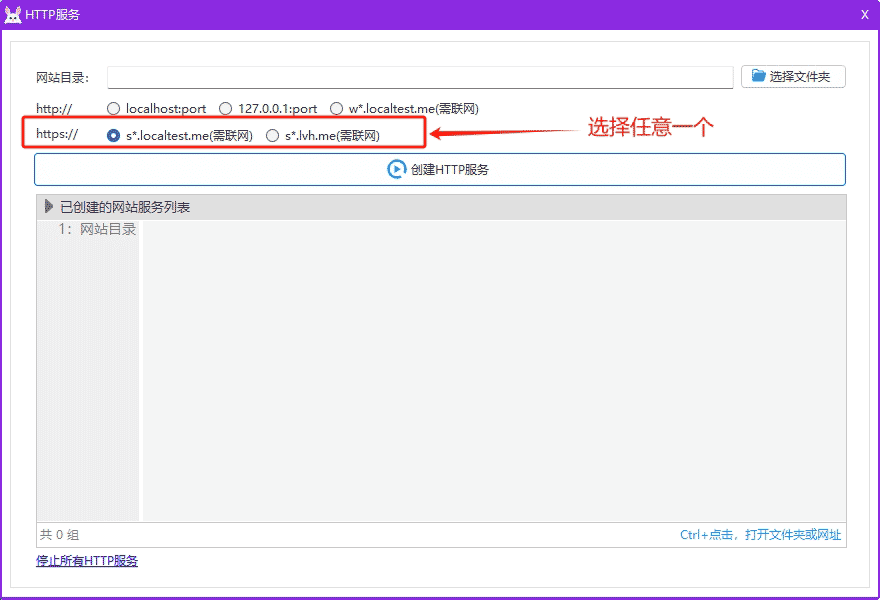
If the default Windows client
443If the port is not occupied, the default port will be used first.
effect
- Local HTTPS test
- Some websites have code-locked access that requires the use of the https:// protocol to open.
Uninstall certificate
- cmd command
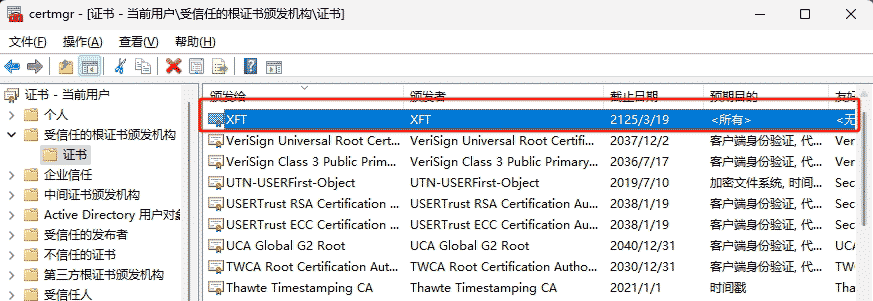
certmgr - exist
Trusted root certificate authorities>CertificateList, findXFTRight-click and delete the certificate with the name.